If you’re playing Team Fortress 2 and want to monitor your frame rate (FPS), you’re not alone. Knowing your FPS can help you tweak performance settings, identify lag issues, and ensure smooth gameplay.
TF2, being a Source engine game, offers several ways to display FPS, either temporarily or permanently. Here’s a quick guide on how to show your FPS in TF2.
Whether you’re troubleshooting performance or just curious, showing your FPS in Team Fortress 2 is simple. You can use cl_showfps for a lightweight overlay, net_graph for detailed diagnostics, or even Steam’s built-in tool.
Frequently Asked Questions
How do I enable the FPS counter in TF2?
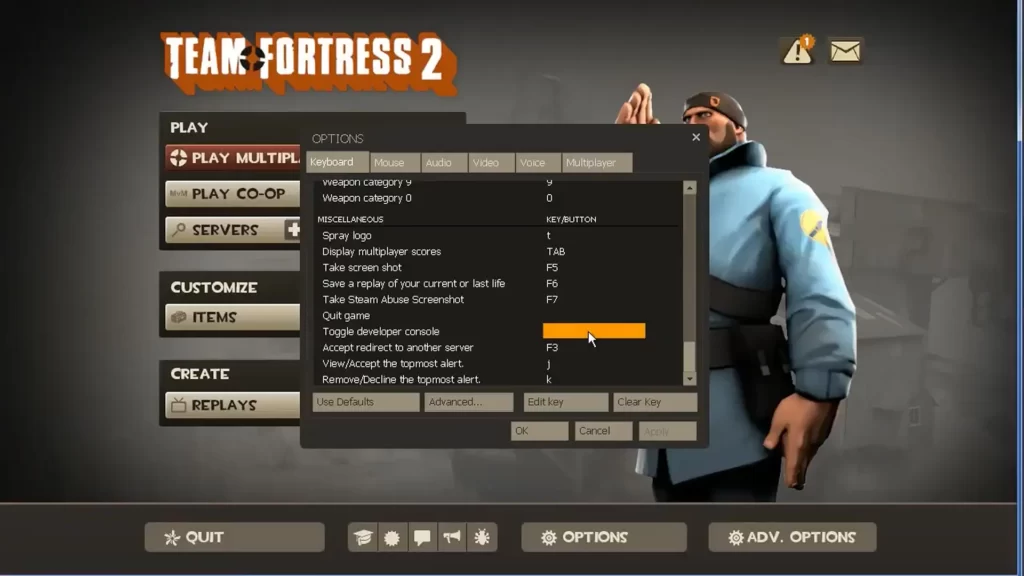
Open the developer console (~) and type cl_showfps 1. This displays your current FPS in the top-left corner.
What’s the difference between cl_showfps and net_graph?
cl_showfps shows only the FPS, while net_graph provides detailed performance info like ping, packet loss, and server tick rate.
How do I disable the FPS counter?
Use cl_showfps 0 to turn off the basic FPS counter or net_graph 0 to disable the detailed overlay.
Can I make the FPS counter show up every time I launch TF2?
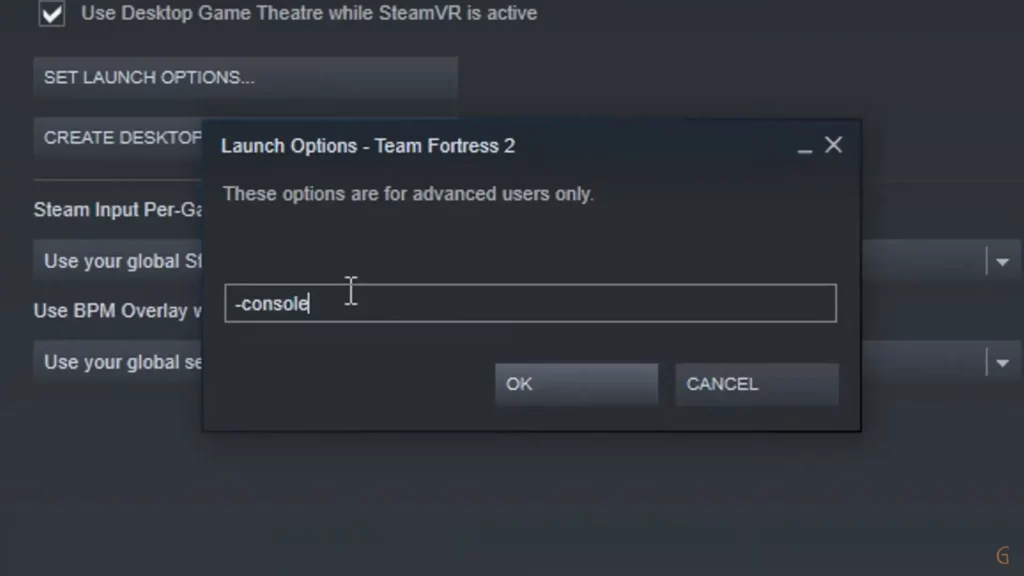
Yes. Add +cl_showfps 1 (or +net_graph 1) to TF2’s launch options in Steam for automatic startup.
How do I move the net_graph position on screen?
Use net_graphpos 1, 2, or 3 to move it to the left, center, or right side of the screen.
Is there a way to show FPS without using the console?
Yes. Steam’s overlay lets you enable an FPS counter via Steam > Settings > In-Game > FPS Counter.
Do FPS commands affect game performance?
No. Displaying FPS has negligible performance impact. It’s just for monitoring, not altering gameplay mechanics.