Rust is a brutal and immersive survival game that thrives on its multiplayer experience. While many players use the in-game server browser to join public servers, you may occasionally want to connect directly to a server using its IP address.
Whether it’s a private server with friends, a modded community hub, or a new custom wipe map, joining by IP ensures you connect quickly and directly. This guide will walk you through every step of joining a Rust server via IP, no matter your experience level.
To join a Rust server with an IP address, follow these steps:
Step 1: Launch Rust
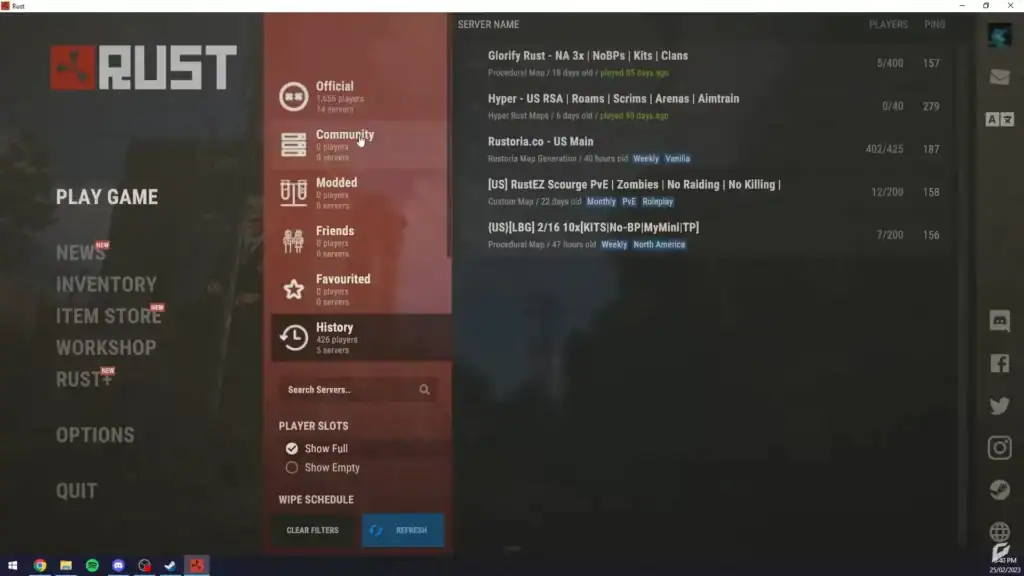
Open Steam, go to your Library, and launch Rust. Wait for the game to load into the main menu. This may take a minute or two depending on your system.
Step 2: Open the Console
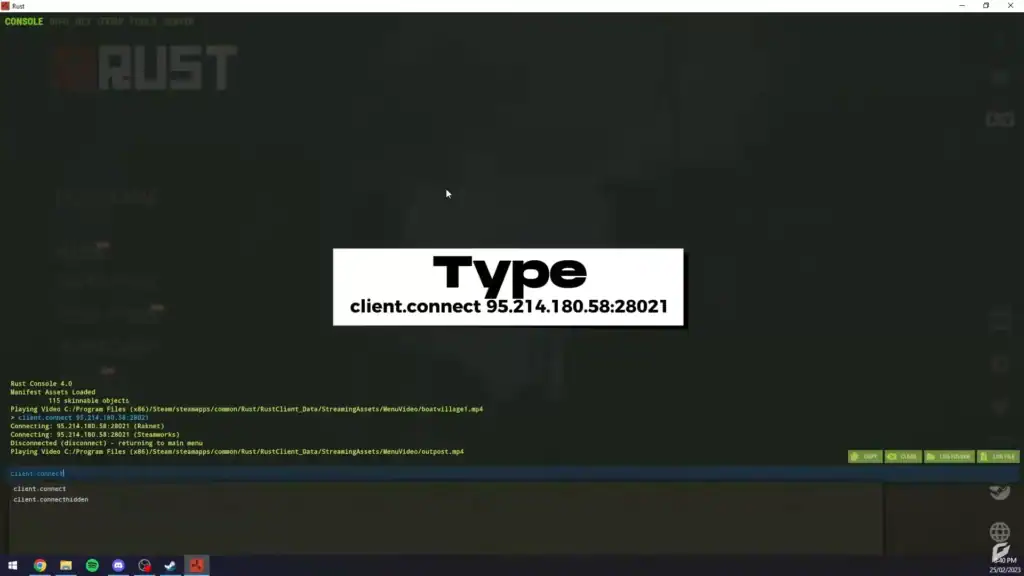
Rust features a built-in developer console where you can enter commands.
Press F1 to open the console.
A semi-transparent window will appear at the top of your screen.
If F1 doesn’t work, make sure that the console is enabled in Rust’s settings:
In Steam, right-click Rust > Properties.
Under the General tab, enter -console into Launch Options.
Restart Rust, and try pressing F1 again.
Step 3: Use the client.connect Command
In the console, type the following command:
client.connect [IP]:[Port]
For example:
client.connect 123.45.67.89:28015
Make sure there are no spaces in the IP address. After typing the command, press Enter. Rust will attempt to connect to the server. You may see a loading screen and hear ambient noises as the game loads the map and assets.
Step 4: Handle Passwords (If Needed)
If the server is password-protected, you’ll be prompted to enter it after connecting. Simply type the password when asked. If you enter the wrong password or don’t have access, the connection will fail.
If you know the password beforehand, you can try connecting with this format:
If successful, you’ll spawn into the server just like you would from the server browser. You can confirm by typing status in the console to verify the IP and server name.
If you encounter issues like infinite loading, disconnects, or missing entities, the server may be having problems—or you may need to verify your game files in Steam.
Here are some common problems and how to fix them:
Problem
Solution
Connection failed
Check if IP and port are correct; verify server is online
Console won’t open
Add -console to Steam launch options
Server not responding
Firewall or antivirus may be blocking connection
High ping or rubberbanding
Try a wired connection or different server region
Optional: Add the Server to Your Favorites
If you plan to play on the server regularly, consider adding it to your Favorites tab:
Open Rust’s main menu.
Click Play Game > Favorites tab.
You can manually edit your serverhistory.json file or use third-party tools to bookmark by IP.
Unfortunately, Rust doesn’t allow adding favorites purely by IP in the UI—you need to connect first.
Final Thoughts
Connecting to a Rust server by IP is an efficient and reliable method for joining private, modded, or favorite servers without relying on the in-game browser. Whether you’re a casual survivor or a server admin, knowing how to use the client.connect command can save time and improve your gameplay experience.