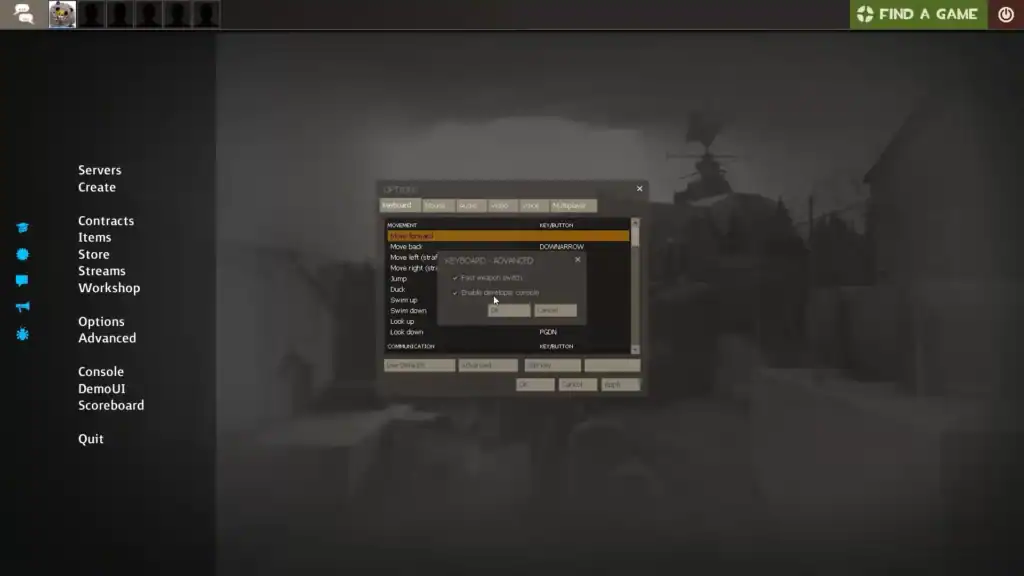
If you’re trying to get the most out of your Team Fortress 2 experience, enabling the developer console is a must. Whether you want to enter custom commands, change game settings, or troubleshoot issues, the dev console is a powerful tool.
However, many players face a frustrating issue: they enable the console, but it won’t open. In this article, we’ll walk you through how to enable the dev console in TF2 and what to do if it’s not opening properly.
The developer console is a command-line interface that lets you enter commands directly into the game. This can include adjusting graphics settings, binding keys, changing crosshairs, enabling cheats (in offline play), and much more.
It’s particularly useful for advanced players, server admins, or anyone who wants to tweak their game.
By default, the dev console is bound to the tilde key (~), located just below the Esc key on most keyboards. Pressing this key should bring up a gray window where you can type commands.
Even after enabling the console, some players find that nothing happens when they press the tilde key. If you’re facing this issue, here are a few ways to fix it.
1. Check Keybindings
Sometimes the console key is not correctly bound, or it may be bound to something else.
Go to Options > Keyboard > Advanced…
After ensuring the console is enabled, go to the Keyboard tab.
Look under Miscellaneous for Toggle Developer Console.
Rebind it to a different key, like F10, just to test.
2. Edit Launch Options
If the in-game settings don’t work, you can force the console to open via launch options in Steam.
Go to your Steam Library.
Right-clickTeam Fortress 2 > Properties.
Under the General tab, find Launch Options.
Add this line: -console
This forces the game to open with the console window already visible. Once it works, you can close the console and press the tilde key to toggle it from then on.
3. Keyboard Layout Issues
Some non-English keyboard layouts (e.g., AZERTY, QWERTZ) don’t have the tilde (~) key in the same place or at all.
Try changing your keyboard layout temporarily to English (US).
You can also rebind the console to a more accessible key in the settings.
4. Config File Conflicts
Occasionally, user config files override keybindings or disable the console.
Search fortoggleconsole and make sure it’s bound properly: bind "`" "toggleconsole"
If the line is missing or incorrect, you can manually add or fix it.
Final Tips
Always back up your config.cfg before making manual edits.
Restart TF2 after applying changes to ensure settings take effect.
If you use custom HUDs or scripts, try disabling them to see if the console issue resolves.
Conclusion
The developer console is an essential feature in TF2, but it can be frustrating when it doesn’t open as expected. Thankfully, the solutions are usually simple: check your settings, bind the key correctly, and use launch options if needed.
Once you get the console working, you’ll have access to a whole new level of customization and control.