Demos and Counter-Strike have had a rocky relationship. The feature rarely worked as intended, and the viewing experience was often frustrating. However, with the arrival of CS2, the demo feature has improved significantly. Now players can showcase their in-game stats and clips without relying on third-party applications.
That said, finding and using this feature can still be challenging. Many players, including myself, have turned to Reddit, searching for answers on how to watch demos in CS2. But worry not! I’m here to save you the hassle and share everything I learned about the demo viewer and the demo watching feature in Counter-Strike 2!
Watch Demos
Basic setup & viewing
Record Demos
Capture your gameplay
FaceIT Demos
View competitive matches
Demo Controls
Advanced playback options
Key Takeaways
Watch demos easily using console commands like playdemo after placing .dem files in the correct folder
Record your own gameplay with the record command for detailed analysis from multiple angles
Download FaceIT demos from your match history and place them in the CS2 directory to analyze competitive matches
Control playback with commands for speed adjustment, player perspective switching, and position skipping
Enhance analysis with third-party tools like Noesis and CS2Lens for deeper insights and improvement tips
How to Watch a Demo in CS2
Watching demos in CS2 is a straightforward process that just requires a few simple steps:
1. Locating Downloaded Demo Files
Find Your Demo File
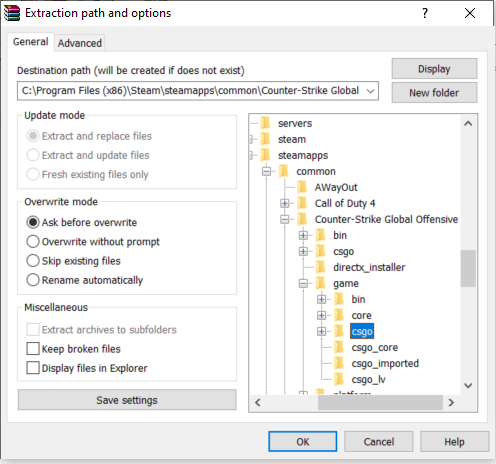
By default, CS2 saves your demo files within the game’s installation directory, typically under the ‘replays’ folder. If you downloaded your demo from an external source, move it to the Steam\steamapps\common\Counter-Strike Global Offensive\csgo directory.
This location is crucial because CS2’s console commands can only access files placed in this specific folder.
Once you’ve located your demo files, follow these steps to watch them:
Access the Demo Viewer
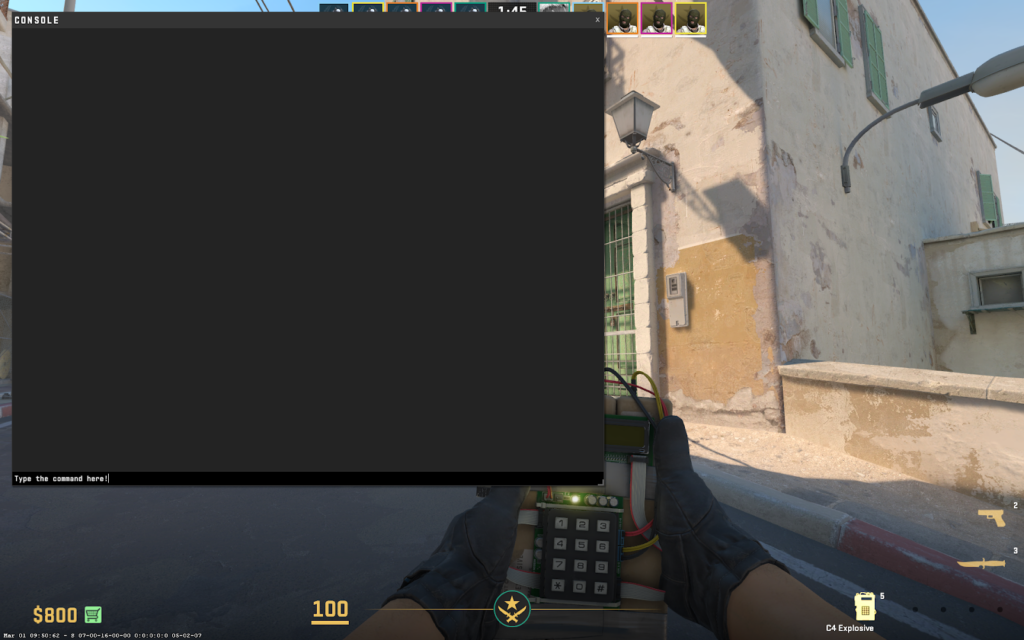
Open CS2 and bring up the Developer Console by pressing the tilde key (~).
Type: playdemo demo_name (Replace demo_name with the actual filename of your demo, without the .dem extension)
Or for advanced controls, type: demoui
Navigate the Demo
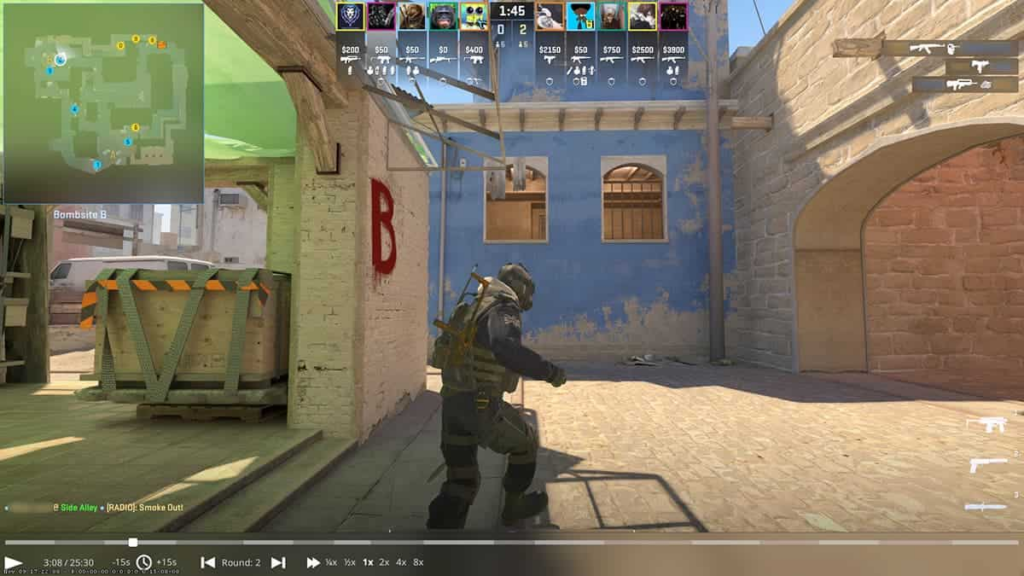
The DemoUI interface allows you to:
Play/Pause the demo
Fast-forward or Rewind using the timeline slider
Change Player Perspective by clicking Next/Previous Player
View Through GOTV Mode for a free camera experience
Basic Playback Command
playdemo your_demo_name
This loads and begins playing your demo. Remember to exclude the .dem extension when typing the filename.
What Are CS2 Demos?
CS2 demos are in-game recordings that capture all the action from your matches, allowing you to replay them from any player’s perspective. These files are saved in the .dem format and can be shared, analyzed, or rewatched later to improve your gameplay.
Learning Tool
Watching professional player demos helps you understand high-level strategies, positioning, and utility usage that you can incorporate into your own gameplay.
Study pro player movements
Learn optimal grenade lineups
Understand advanced team strategies
Self-Improvement
Review your own matches to identify mistakes, analyze your decision-making, and recognize patterns that need improvement.
Find positioning errors
Analyze aim mechanics
Evaluate decision-making
Content Creation
Create highlight videos, tutorials, or share impressive plays with friends by recording, editing, and exporting clips from your demos.
Analyzing your gameplay is one of the best ways to improve in Counter-Strike 2. Recording demos lets you review your matches from different perspectives to identify strengths and weaknesses in your play.
Enable Developer Console
Console commands are the easiest way to record demos in CS2. Here’s how to get started:
Launch CS2 and open Settings
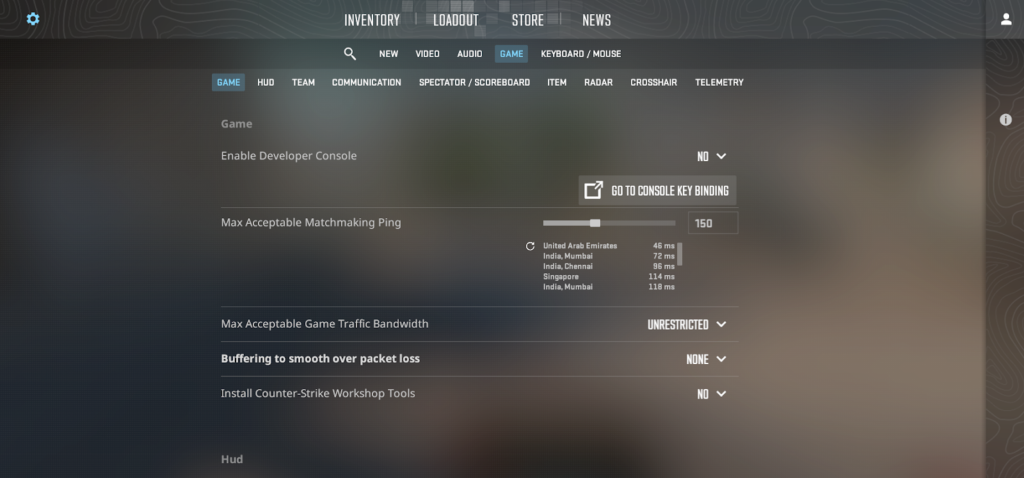
Navigate to the Game tab and enable Developer Console (~)
Start Recording
Open the console by pressing the ~ key
Type: record demo_name (replace with your chosen name)
Play your match as usual – CS2 will record everything until you stop it
Stop Recording
When you’re finished recording, open the console again and type: stop
Your demo will be saved to: C:\Program Files (x86)\Steam\steamapps\common\Counter-Strike 2\csgo\replays
Recording Command
record my_awesome_match
This starts recording your gameplay to a file named “my_awesome_match.dem”
How to Download CS2 Matches
CS2 automatically stores your recent matches, making it easy to download and review them later. Here’s how to access these matches:
Access Match History
Open CS2 and click Watch Matches from the main menu
Select Your Matches to view your recent game replays
Click the Download button next to any match you want to save
Share Your Demo
To share your demos with friends or the community:
Locate the .dem file in your CS2 directory
Upload it to a cloud service like Google Drive or Dropbox
Share the download link with others
Troubleshooting: Can’t Download CS2 Matches
Common Download Issues
If you encounter problems with downloading your matches, try these solutions:
Check your internet connection – Make sure you have a stable connection
Restart CS2 – Sometimes a simple game restart can fix download issues
Verify storage space – Ensure you have enough disk space available
Verify game files – Use Steam’s option to check for corrupted files
Update your game – Make sure CS2 is fully updated to the latest version
GOTV replays offer another excellent way to analyze your gameplay. Here’s how to download them:
Access GOTV Replays
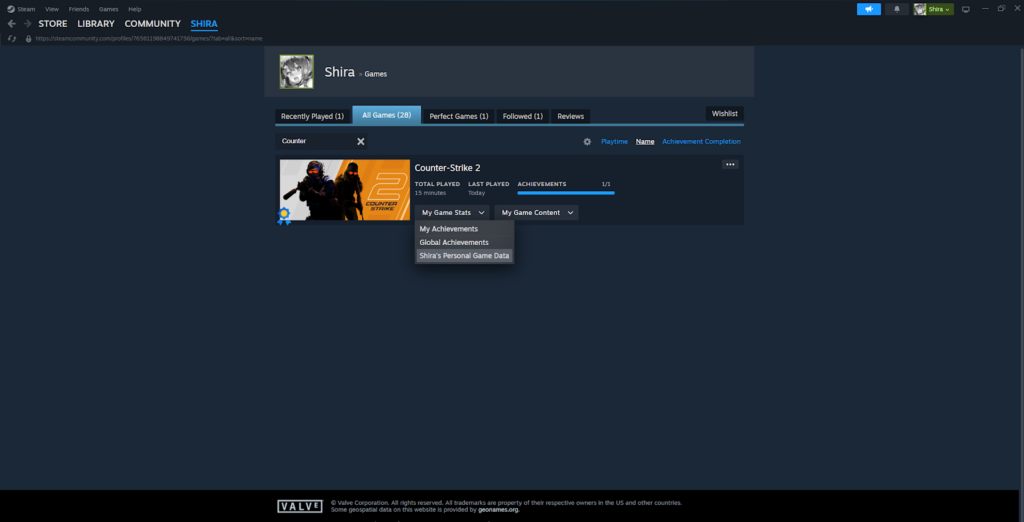
Log in to your Steam account through a web browser
Select Games
Find and click on Counter-Strike 2
Click on Personal Game Data under Premier Matches
Choose the specific game you want to analyze
Click the Download GOTV Replay button
The downloaded replay should be placed in your csgo directory for viewing.
How to Watch FaceIT Demos in CS2
If you’re grinding Counter-Strike 2 on FACEIT, watching your demos is one of the best ways to improve. But unlike in CS:GO, where demo playback was straightforward, CS2 makes things a bit trickier. Here’s how to watch your competitive FACEIT matches:
Download the Demo from FACEIT
Go to FACEIT’s website and log in to your account
Click on your match history (under the “Matches” tab)
Select the match you want to review
Scroll down and look for the “Download GOTV Demo” button
Download the .dem file to your PC
Move the Demo to the Right Folder
CS2 doesn’t let you open demos from anywhere—you need to place the file in the correct directory:
Find your CS2 game folder. It’s usually located at: C:\Program Files (x86)\Steam\steamapps\common\Counter-Strike Global Offensive\game\csgo
Move the .dem file into the csgo folder
Open the Demo in CS2
Launch CS2 and open the console (~ key)
If the console isn’t enabled, go to Settings > Game > Enable Developer Console and turn it on
In the console, type: playdemo your_demo_name (Replace your_demo_name with the actual name of the .dem file, without including the .dem extension)
In Counter-Strike 2, demo controls allow you to review and analyze gameplay by recording and replaying matches thoroughly. Here’s how to use the demo and replay controls within the game:
Essential Demo Commands
demo_pause          // Pause the demo
demo_resume         // Resume playback
demo_timescale 0.5  // Play at half speed (0.25 to 4)
demo_gototick 12345 // Jump to a specific tick
demoui              // Open the demo UI panel (also Shift+F2)
These commands give you complete control over demo playback. The timescale command is particularly useful for studying fast-paced moments in slow motion.
Recording Demos
Capture Your Gameplay
Start Recording: Open the developer console in-game and type record [demo_name] to begin recording
Stop Recording: To stop and save the demo, type stop in the console
Advanced Replay Controls in CS2
Master Playback Navigation
Timestamp Tracking: Shows elapsed and total time
Round Navigation: Easily jump to the beginning of the current round or move to previous/next rounds
Player Cycling: Use mouse clicks or number keys to cycle through player perspectives
Camera Modes: Switch between first-person, third-person, and free-camera views with the Space bar
Tactical Overview: Press the Q key to open a map view showing all players’ positions
Scoreboard Access: View the match scoreboard with the Tab key
Going Through Different Angles and Perspectives in CS2 Demos
One of the most valuable aspects of CS2 demos is the ability to view gameplay from multiple perspectives. You can cycle through players by pressing their corresponding number keys (1-10) or using the DemoUI interface.
Effective Demo Review Tips
Watch from multiple perspectives – View important rounds from both your POV and opponents’ to understand what you missed
Use slow motion for fast-paced encounters to analyze aiming and movement mechanics in detail
Study the tactical overview (press Q) to understand positioning and rotations
Take notes on specific situations where you could improve decision-making
Focus on deaths – Always rewatch your deaths to understand what went wrong
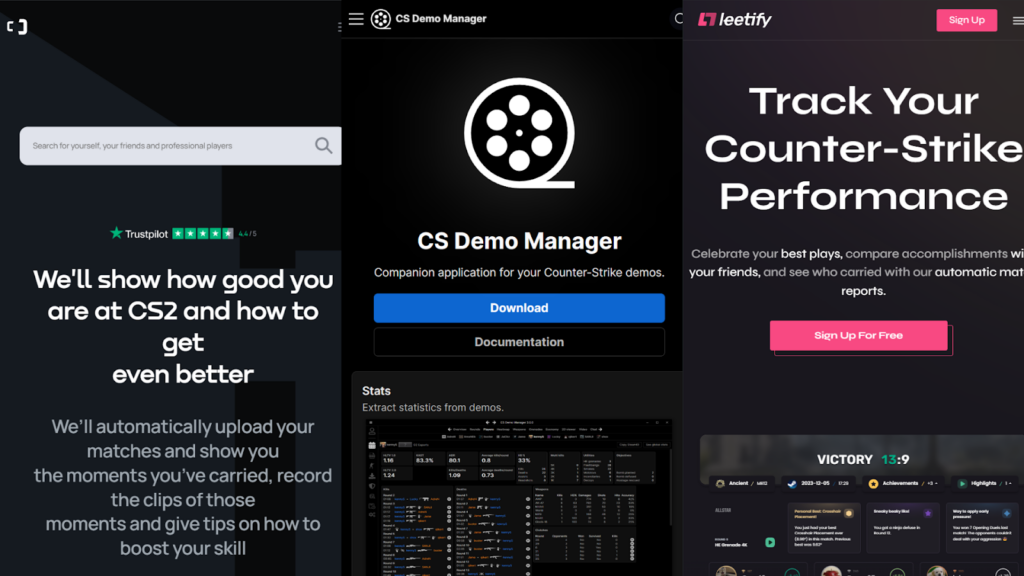
While CS2’s built-in demo viewer provides basic functionality, third-party tools can take your analysis to the next level with advanced statistics, heatmaps, and more detailed insights.
Tool
Features
Website
Noesis
Upload and analyze CS2 demos, heatmaps, utility tracking.
noesis.gg
JumpThrow.gg
Crosshair customization, key bindings, pro team demo analysis.
jumpthrow.gg
CS2Lens
Professional demo replayer with performance insights.
cs2lens.com
Noesis
Noesis provides comprehensive analytics for both casual and competitive players, with visual heatmaps showing positioning patterns and utility usage.
Detailed performance metrics
Interactive heatmaps
Utility tracking and analysis
Free basic tier available
CS2Lens
A professional-grade demo analyzer focused on providing actionable insights to help you identify specific areas for improvement in your gameplay.
Advanced playback controls
Personalized improvement tips
Compare stats with pros
Weapon usage analysis
JumpThrow.gg
Beyond demo analysis, this platform offers tools for optimizing your game settings and studying professional team strategies.
Crosshair customization
Pro team demo breakdowns
Key binding optimization
Community strategy sharing
Summary
Mastering demo recording and playback in CS2 can dramatically improve your skills and give you an edge over opponents. Whether using the built-in Demo Viewer or advanced third-party tools, consistently reviewing your gameplay from both standard matchmaking and FACEIT is crucial to becoming a better player.
While CS2’s demo features aren’t perfect yet (especially compared to CS:GO), they provide valuable tools for analyzing your performance, learning from mistakes, and developing better strategies. As the game continues to evolve, we can expect more improvements to the demo system in future updates.
Frequently Asked Questions
How do I share CS2 demos with others?
Upload the .dem file to a file-sharing platform and share the download link. Ensure the recipient knows how to place it in the correct folder for viewing.
Can I watch older CS2 demos after updates?
Sometimes, major updates break demo compatibility. Check if third-party tools like Noesis offer backward compatibility.
What are the best free demo analysis tools?
Noesis offers a free tier for basic demo analysis. CS2Lens provides free demo playback with advanced features available via subscription.
How long are CS2 demos stored?
Match demos in Your Matches are typically stored for 21 days. Download important demos to keep them permanently.
Are there privacy concerns with third-party demo tools?
Reputable tools like Noesis and JumpThrow.gg prioritize user privacy. Always download from official websites.
What should I do if I can’t download CS2 matches?
Ensure your game is updated, restart CS2, and check for any errors preventing the download.
How to play FACEIT demos in CS2?
To play a FACEIT demo in CS2, download the .dem file from your match page on the FACEIT website. Move it to your CS2 game folder (steamapps/common/Counter-Strike Global Offensive/game/csgo), then launch CS2 and open the console. Type playdemo demo_name (without .dem) to start playback.
How to watch specific rounds in CS2?
CS2 doesn’t have a round-skip feature, so you have to manually jump using ticks. First, play the demo with playdemo demo_name, then use demo_gototick X to skip to a specific moment. If you don’t know the exact tick, you may need to fast-forward using demo_timescale X and pause when you reach the right round.